

If you've been building Power BI reports for a while, you know the frustration: you need to bulk-update measure descriptions, fix a typo across dozens of calculations, or migrate a set of measures from one report to another. The GUI makes these tasks tedious at best and impossible at worst.
That's where TMDL (pronounced: "tim-duhl") comes in. TMDL (Tabular Model Definition Language) is a text-based way to define and script tabular models in Power BI.
It isn't a tool for every task. You're not going to build your entire semantic model in TMDL. But when you need to view, edit, or move metadata at scale, TMDL is faster and more powerful than anything else in Power BI.
The PBIP Connection
Before we dive into TMDL itself, let's talk about PBIP files—because they're related but not the same thing.
The traditional .pbix file format is proprietary and opaque. If you've ever tried to track changes between versions in source control, you know it's nearly impossible to see what actually changed. Everything's bundled together in a binary format that doesn't play nice with Git or other version control systems.
PBIP (Power BI Project) files solve this problem by serializing your semantic model metadata into separate text files—using TMDL format. When you save a report as a PBIP, Power BI automatically generates .tmdl files for each object in your model, making it easy to:
- Track exactly what changed between versions
- Edit metadata in external tools like Visual Studio Code
- Merge changes from multiple developers working on the same report
Here's the important part: you don't need PBIPs to use TMDL. The TMDL View works in regular .pbix files too. But if you're working on a team or want better version control, switching to PBIP format gives you the full benefits of TMDL's text-based approach.
The TMDL View in Power BI Desktop
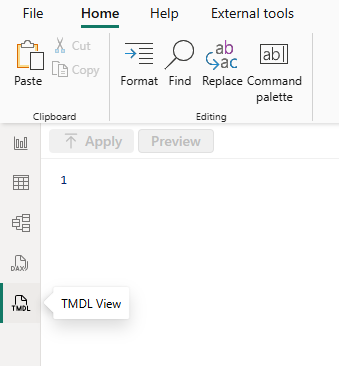 The TMDL View is built into Power BI Desktop alongside your standard Model, Data, and Report views. You'll find it in the view switcher on the left side of the screen.
The TMDL View gives you a text-based editor for your semantic model with some surprisingly useful features:
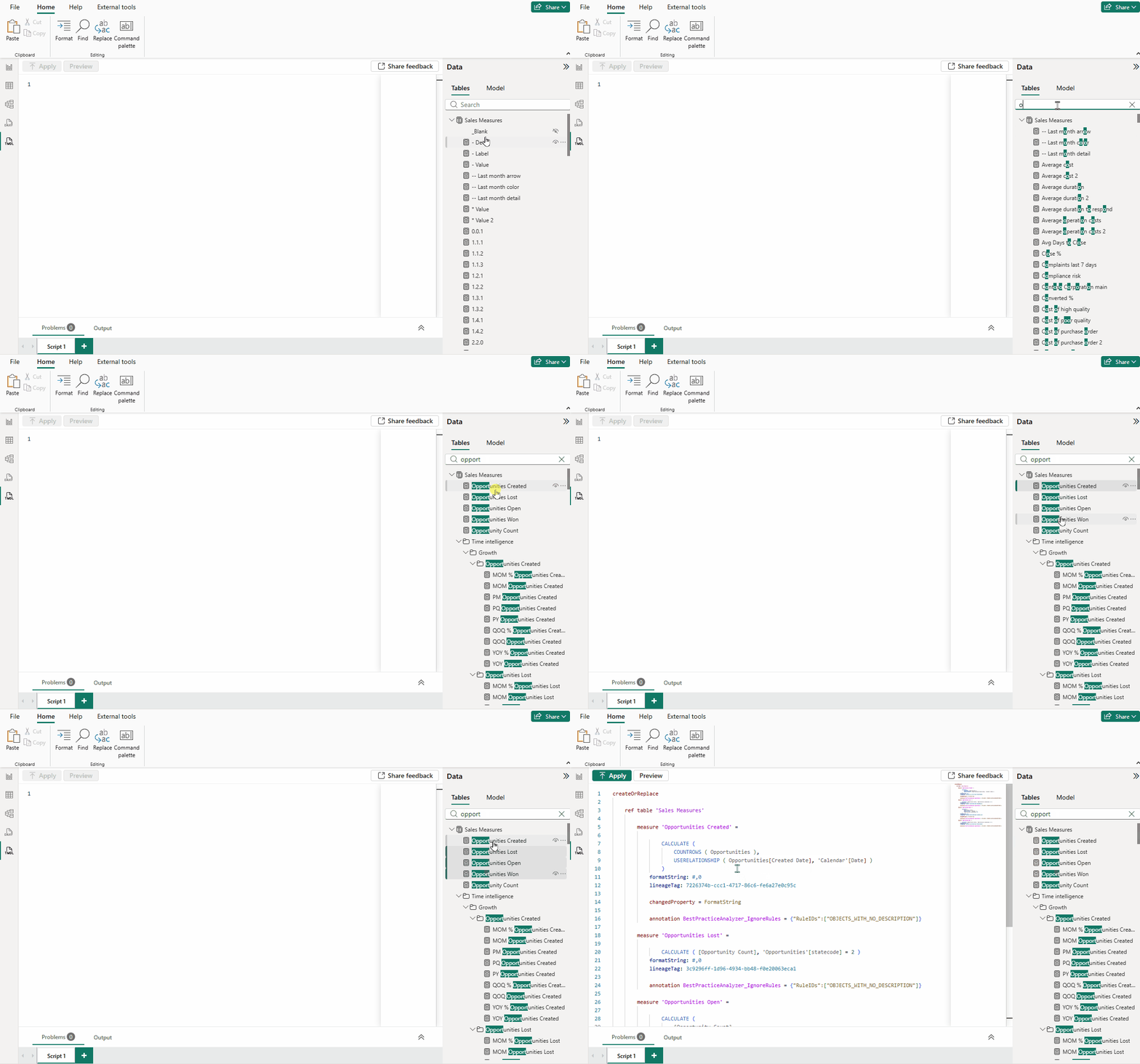
- Drag-and-drop scripting: Drag objects from the Data pane directly into the TMDL View, and Power BI generates the corresponding TMDL script. Need to script multiple objects at once? Multi-select with Ctrl or Shift before dragging. (Each drag creates a new script tab, even if you drag onto an existing one. If you're working with a PBIP file, each of these tabs gets saved as a separate .tmdl file.)
- IntelliSense for TMDL (not DAX): Press Ctrl+Space to see IntelliSense options for TMDL keywords like CreateOrReplace. Important caveat: you won't get IntelliSense for DAX or M code inside TMDL files—only for the TMDL structure itself. However, you can do this with the VS Code TMDL extension from Microsoft.
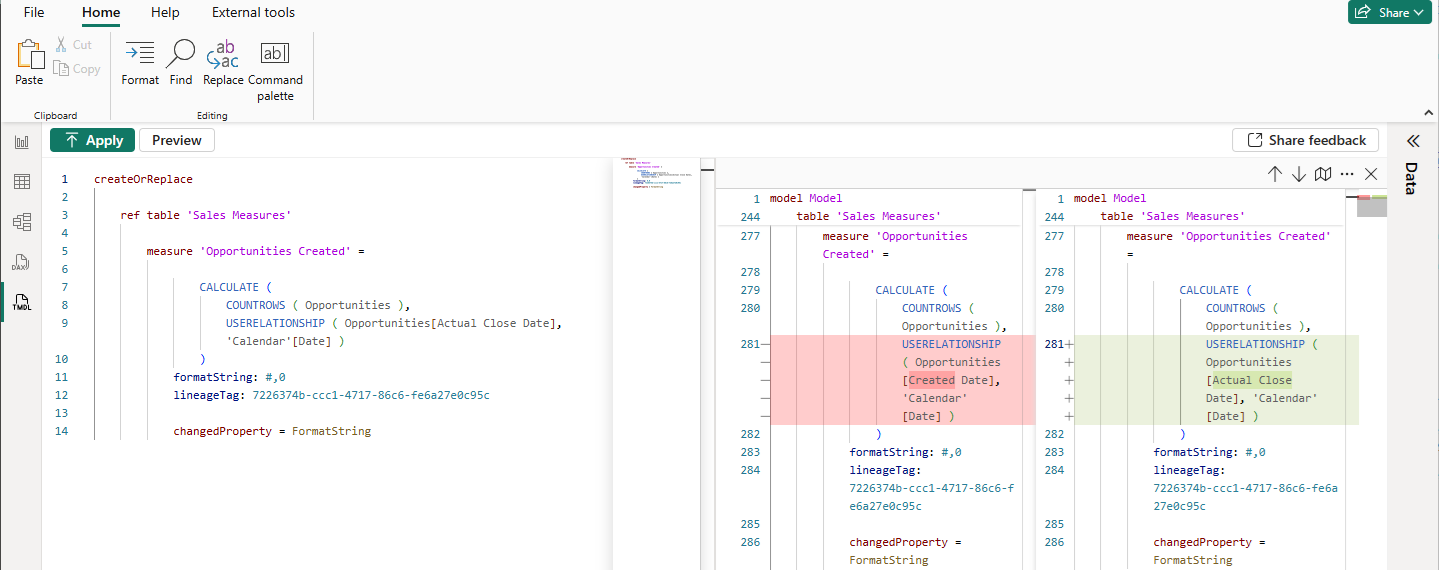
- Preview before committing: The Preview Pane shows a diff view of exactly what will change before you commit, so you're not flying blind when making bulk updates.
- Add descriptions with triple slashes: Use /// above any object to add a description. This is particularly useful when documenting measures in bulk.
Where TMDL Actually Helps
Let's be practical: TMDL isn't the right tool for everything, but here are some places where it shines.
Live editing of DirectLake semantic models from Power BI Desktop
When editing Direct Lake semantic models in Fabric, the combination of PBIP and TMDL enables live editing—your changes apply immediately to the workspace semantic model without separate deployment. This makes TMDL particularly powerful for iterative Fabric development.
Modern DevOps approach for Fabric
For Fabric workspaces, TMDL files saved in PBIP format can be deployed through Fabric Git Integration, enabling proper CI/CD workflows. Connect your workspace to Azure DevOps or GitHub, and your TMDL changes flow through pull requests and automated pipelines. 
View or update at scale
When you need to see or modify many measures at once, TMDL beats the GUI hands down.
Need to copy measures from one report to another? You can do it with DAX Query View, but TMDL brings across more properties—formatting, descriptions, display folders—and makes it easier to select exactly which measures you want to move.
Want to bulk-update properties using Find and Replace? TMDL makes this possible. Just be specific with your search terms to avoid unintended changes.
Warning from experience: In my testing, renaming measures via Find and Replace in TMDL breaks existing references in the UI.
Advanced editing that the native Power BI GUI can't handle
Some properties simply don't have GUI options in Power BI Desktop. TMDL gives you direct access to edit:
- Perspectives
- Object-level security (OLS)
- Translations
- IsAvailableInMDX
- Cultures
You can also modify calculation group items more easily than through the GUI, which is notoriously clunky for this task.
Reuse and collaboration
Once you have measures, calculation groups, or calendar tables defined in TMDL, you can save and share them. This enables:
- Copy/paste reusable components between reports
- Centralized repositories of common patterns (like calendar tables or standard measure templates)
- Asynchronous development workflows where one developer creates measures, saves them as TMDL, and another developer merges them into the main semantic model
This last point is particularly valuable for teams. Instead of everyone fighting over the same .pbix file, developers can work in parallel and merge their changes.
Where TMDL Doesn't Help
It's equally important to know when not to use TMDL.
- Initial model creation and simple GUI tasks: Building relationships, creating basic measures, adding columns—the GUI is faster for all of this. Don't force yourself to work in text when visual tools are more efficient.
- Writing DAX or Power Query: You won't get IntelliSense for DAX or M code inside TMDL files. If you're writing complex logic, do it in the dedicated DAX or Power Query editors where you have autocomplete and syntax checking.
- Cultures: These are hard to interpret in TMDL format. Stick with the GUI for managing cultures.
- Setting unfamiliar properties: If you don't know what a property does, the TMDL view isn't the place to experiment. Use the GUI where you have tooltips and constraints that prevent invalid configurations.
- Manual creation of Perspectives: While you can define perspectives in TMDL, it's tedious. Use Tabular Editor instead.
Using TMDL with Visual Studio Code
For more advanced workflows, you can edit .tmdl files directly in Visual Studio Code.
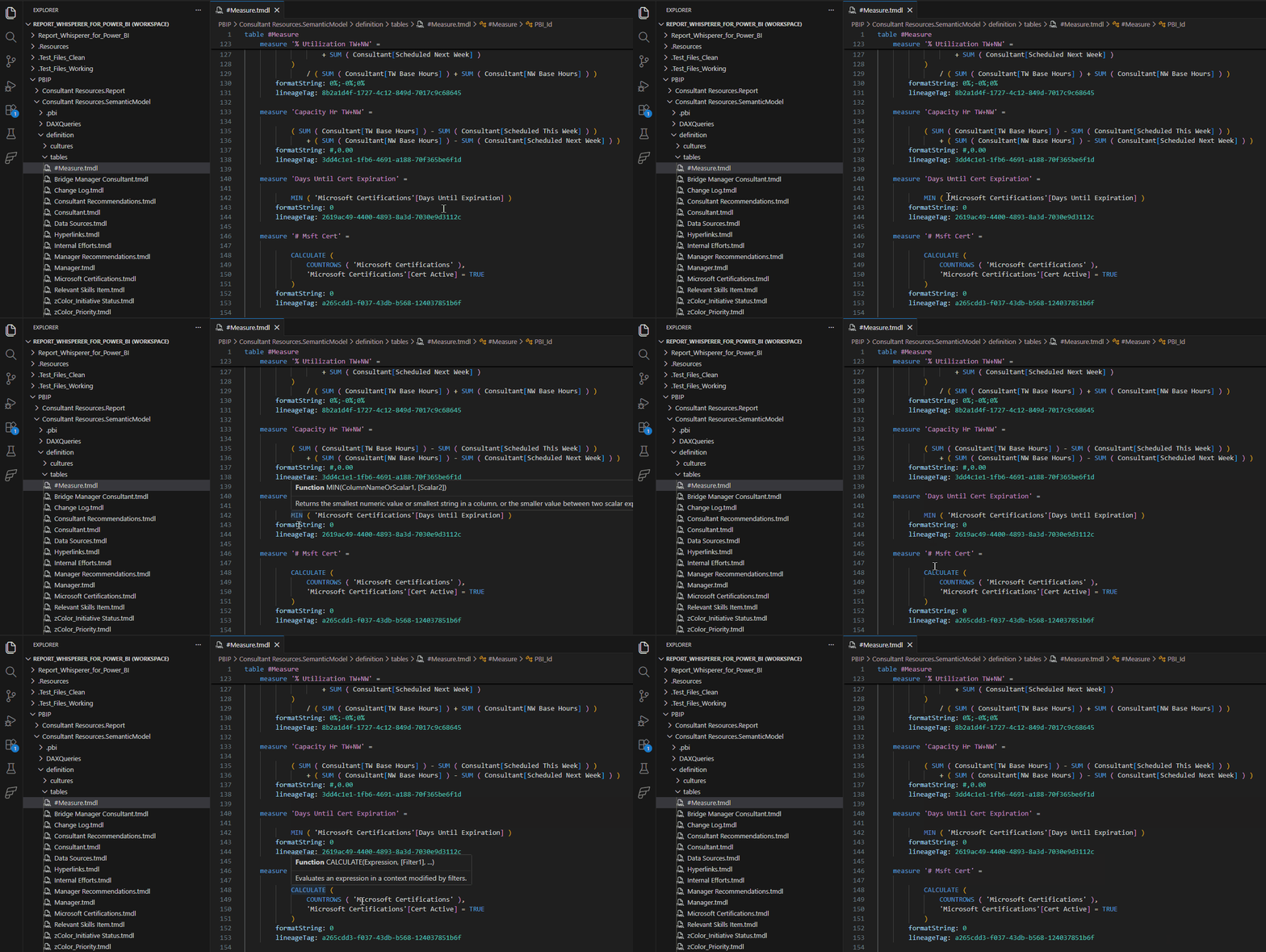
The TMDL extension even supports DAX IntelliSense!
Setup
- Install Visual Studio Code
- Install the TMDL extension for IntelliSense and formatting
- Supercharge it with GitHub Copilot
If you connect GitHub Copilot (even the free version), you can use AI to assist with tasks like adding descriptions to measures based on business context.
Here's an example prompt I used successfully:
"Add descriptions to all measures in Measure.tmdl based on the Bicycle shop retail sales use case and interpreting the DAX definitions. The syntax for a description is to start a line with 3 forward slashes ('///') on the row before the measure name."
Add your .tmdl file to Copilot's context (which happens automatically when you open the file), run the prompt, and Copilot generates descriptions for every measure. I then copy/pasted the results back into the TMDL View in Power BI to commit the changes.
The Bottom Line
TMDL isn't a replacement for the Power BI GUI—it's a complement that fills specific gaps where the interface is limiting.
Use TMDL when you need to:
- Edit a DirectLake semantic models from Power BI Desktop
- Use Git for CI/CD using PBIP files
- View or modify many objects at once
- Access properties that have no GUI option
- Copy reusable components between reports
- Enable parallel development workflows
- Change properties the GUI won't let you modify
Skip TMDL when you're:
- Building models from scratch
- Writing complex DAX or M code
- Working with unfamiliar properties
- Doing simple tasks that are faster in the GUI
The key is knowing when to reach for each tool. Master both, and you'll find yourself building and maintaining semantic models faster than you thought possible—especially when working at scale or collaborating with a team.