

You found the problems in your semantic model. You made changes. Now prove they actually helped.
In Part 1, we used DAX Studio to diagnose what's wrong with a Fabric semantic model - the oversized tables, the memory-hogging columns, the problematic relationships. You connected to models living entirely in Fabric, never downloading a .pbix file, and got visibility into what the web interface doesn't show you.
You made some changes. Filtered down that dimension table. Removed unused columns. Fixed a relationship.
Now what?
Did it actually get faster? By how much? Can you prove it?
This is where most optimization efforts fall apart. You have a vague sense that "it feels faster," but no data. Your boss asks "was this worth the time investment?" and you shrug.
DAX Studio turns vague feelings into hard numbers.
Creating Your Performance Baseline
Your report is slow. Users are complaining. You need objective data about what's happening before you start changing things.
Here's the workflow:
- Open your report in Fabric. Go to View → Performance Analyzer. Click "Start recording." Interact with the slow visual - change a slicer, drill down, whatever triggers the delay. Click "Stop recording."
- In the Performance Analyzer pane, expand the visual you captured. Click "Copy query" to put the DAX on your clipboard.
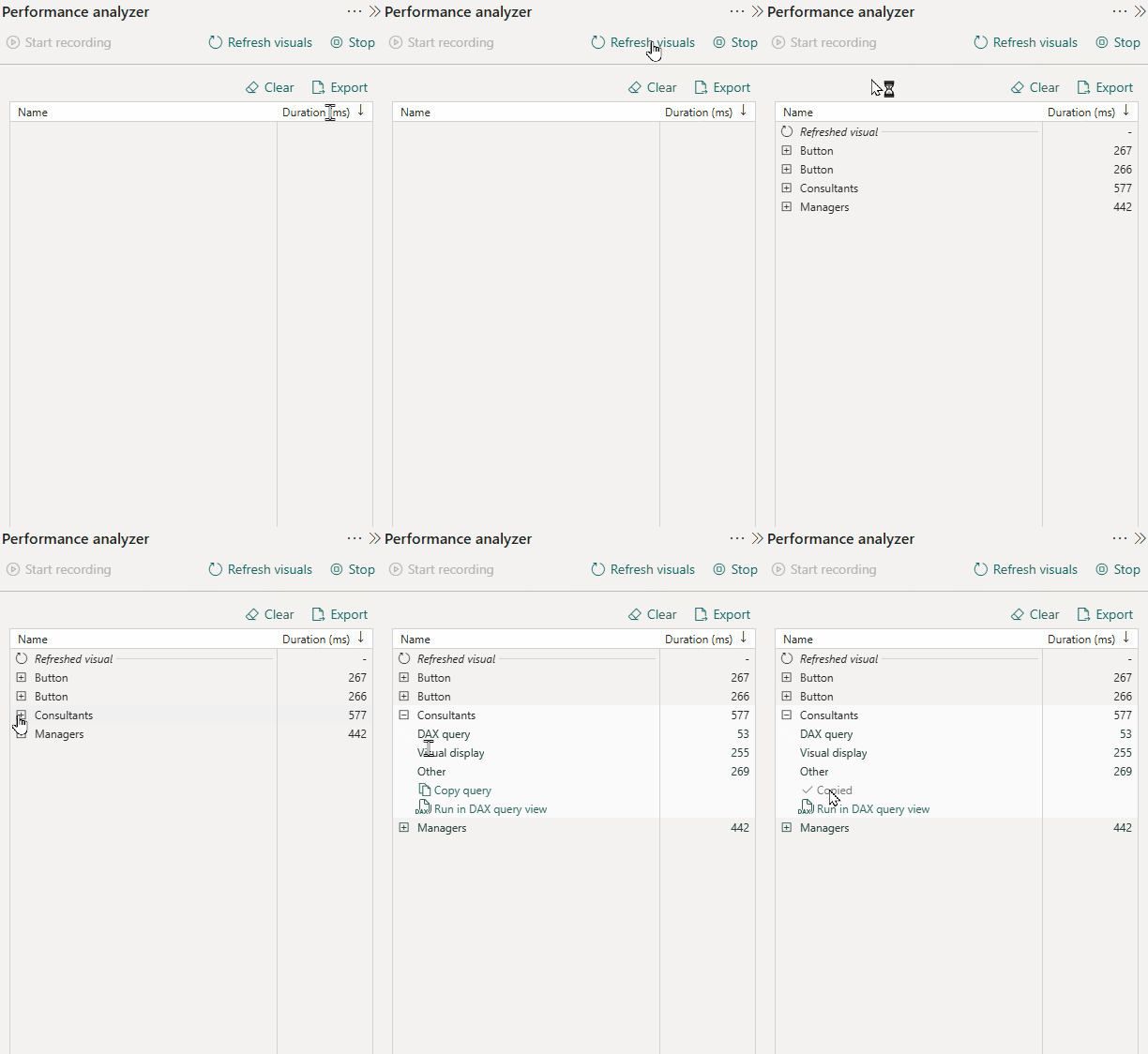
- Now open DAX Studio (connected to your Fabric semantic model). Paste the query into the query window.
- Click Server Timings in the Home ribbon, then Clear Cache, then Run (F5).
- Click the Server Timings tab that appeared at the bottom.

You're now looking at exactly what happened when Fabric executed that query: total duration, how the engine processed it, and where time was spent.
This is your baseline. Screenshot it. Export it. Document the total duration. You now have objective data about performance before your changes.
The Optimization Loop
Now you make your changes in the semantic model. Filter that dimension table. Remove those unused columns. Publish to Fabric.
Reconnect DAX Studio to the updated model. Run the exact same query again (it's still in your query pane). Click Clear Cache first, then Run.
Compare the new Server Timings to your baseline. Did total duration decrease? Did the processing get simpler?
Real scenario: You optimized a DimPatient table from 2.5M rows to 400K rows (the example from Part 1). Your baseline query took 8.2 seconds. After the change: 2.1 seconds. You just proved a 74% performance improvement.
Put them side by side. Send them to your boss. "Here's the before, here's the after, here's the time saved on every query that touches this table."
That's how you prove optimization work is worth it.
Auditing Measures for Consistency
Real scenario: You have 200 measures spread across multiple tables. Some follow naming conventions. Some have default formats. Clicking through Fabric's web interface to audit them manually would take hours.
In DAX Studio's query window, type:
EVALUATE INFO.VIEW.MEASURES()Run it (F5).
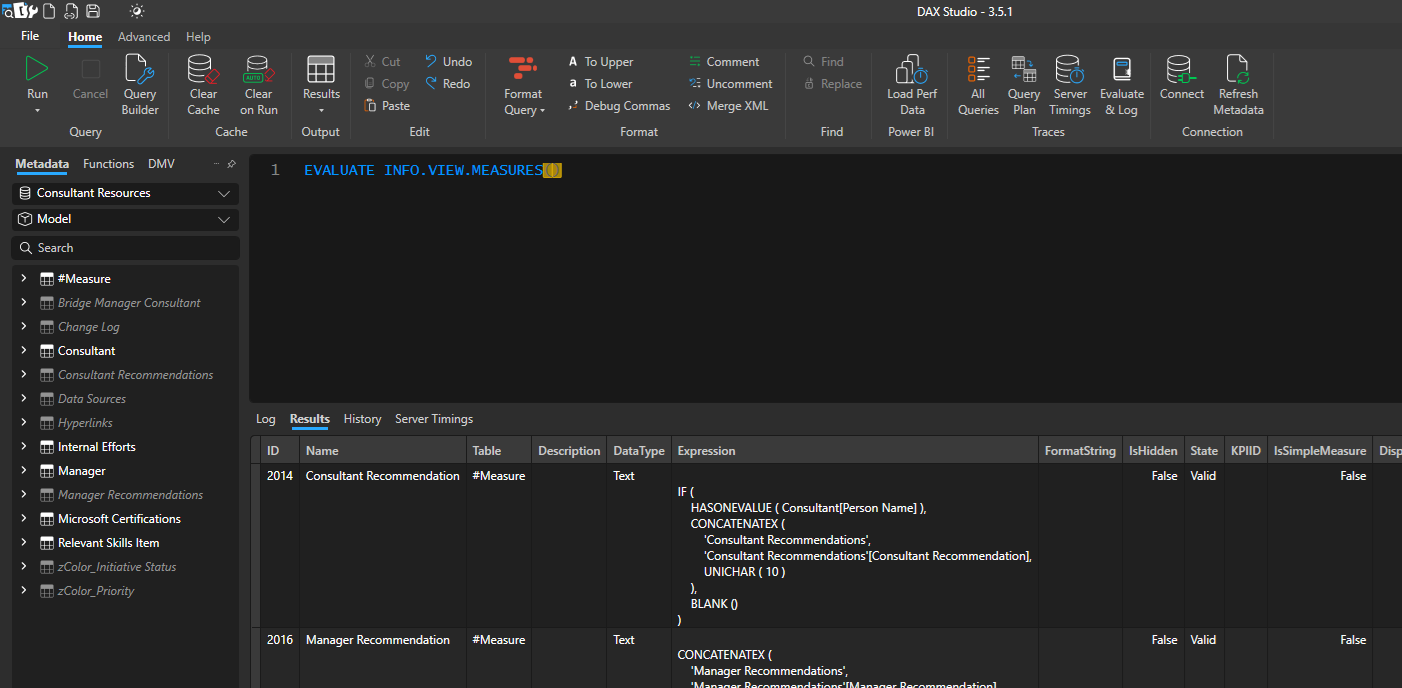
You now have a table with every measure: name, table, display folder, format string, description, and the full DAX expression.
Click Home → Output → Static to export it to Excel.
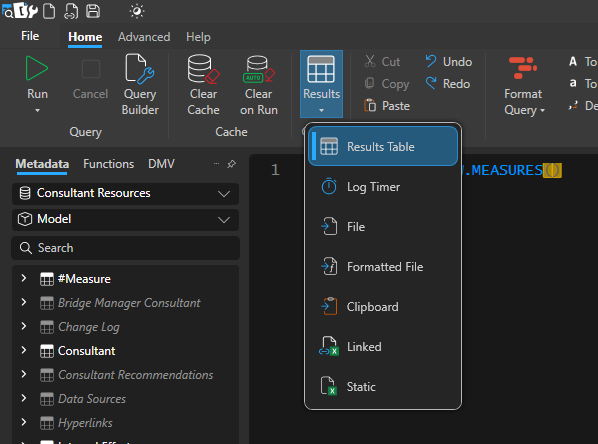
Now you can:
- Sort by format string to find inconsistent formatting
- Filter by table to see if measures are organized logically
- Search expressions for patterns or issues
- Find measures with blank descriptions
- Spot naming convention violations
Why this matters in Fabric: Web authoring makes it easy to create measures quickly. It also makes it easy to accumulate inconsistency quickly. Regular measure audits keep your semantic model maintainable as your team grows.
Bonus move: Export this table, paste it into an LLM along with your naming, formatting, and organization standards. Ask it to flag any measures that don't comply and suggest improvements. You've just audited 200 measures in 2 minutes.
Impact Analysis Before Making Changes
The business wants to change a dimension table grain. You're concerned about what breaks.
In DAX Studio's metadata pane (left side), right-click the dimension table → Show Objects That Reference Data.
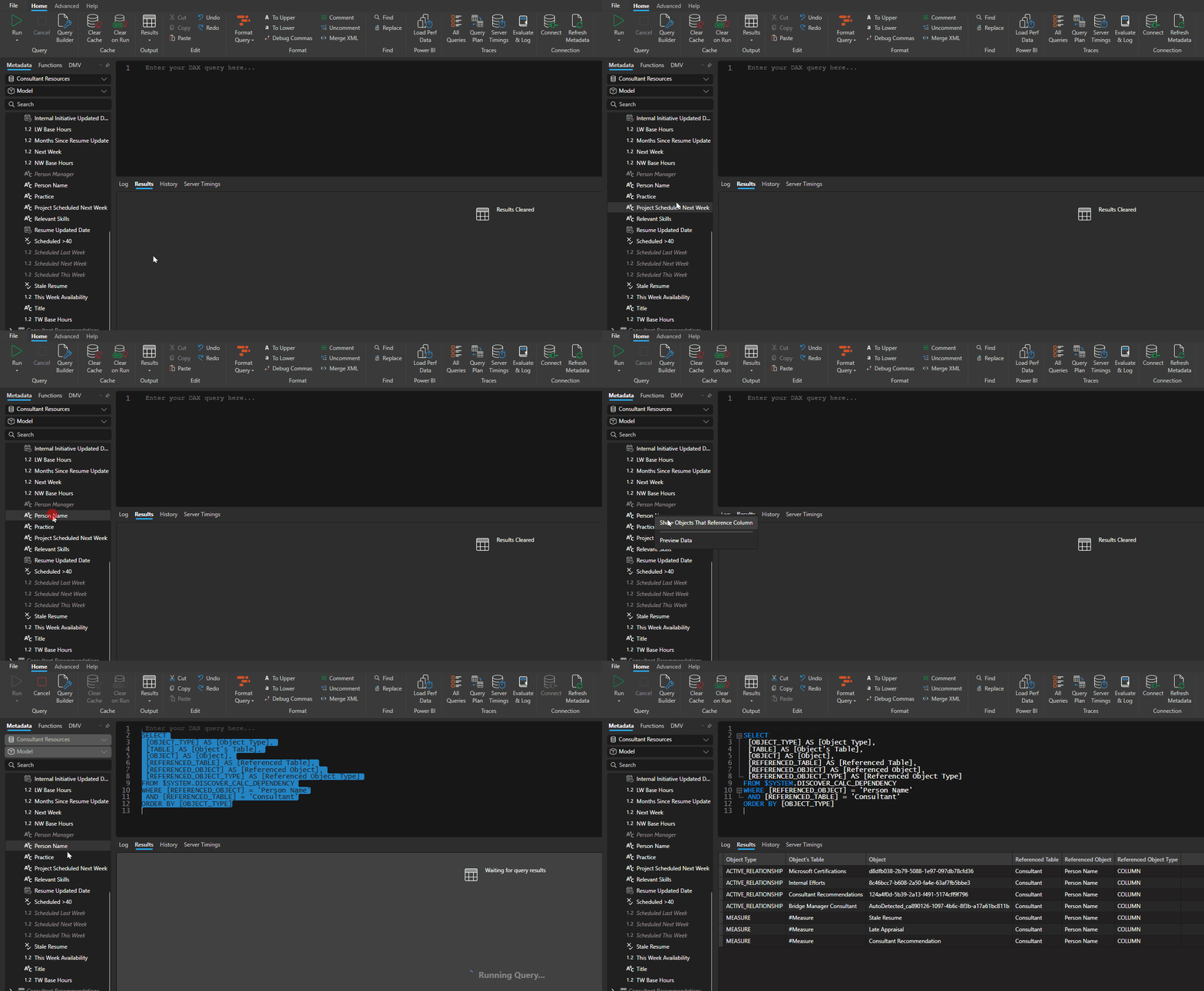
DAX Studio shows you every object in the semantic model that references your table. You now know exactly what to review and test before making changes in production.
Why this matters in Fabric: When your semantic model lives only in the service, you can't just "undo" as easily as with local files. Understanding dependencies before changes reduces the risk of breaking production models.
Exporting Data When You Need It
Sometimes you need to get data out of a semantic model - for validation, for documentation, etc.
Table-level export: Advanced → Export Data, check the boxes for the tables you want. DAX Studio exports them to files.
Query-level export: Write or copy any DAX query (better yet: use the built-in Query Builder), then change the output format: Home → Output → File (or Static, etc.). Run the query, and the results are saved to a file instead of displaying in DAX Studio.
Why this matters in Fabric: The web interface has row limits on what you can export. DAX Studio doesn't. If you need to extract large datasets for validation or migration, DAX Studio handles it.
The Bigger Picture
In Part 1, you learned that DAX Studio isn't about writing DAX - it's about understanding your semantic model structure when Fabric's web interface doesn't give you enough visibility.
In Part 2, you learned it's also your performance measurement tool, your governance auditor, your impact analyzer, and your data export utility.
Here's what that enables:
- You can prove optimization work with before/after metrics.
- You can maintain consistency across measures as your team grows.
- You can assess change risk before modifying production models.
- You can extract data beyond Fabric's export limits.
None of that requires being a DAX expert. It requires knowing that DAX Studio does more than that intimidating blank query window suggests.
The tool you thought was for experts is actually for anyone who needs to see what's really happening in Fabric semantic models.
Get in there. Connect to a model. Run INFO.VIEW.MEASURES(). Capture some Server Timings. You'll find something useful in the first five minutes.